Edit with AI
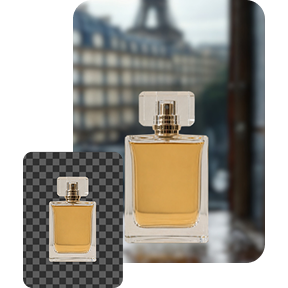
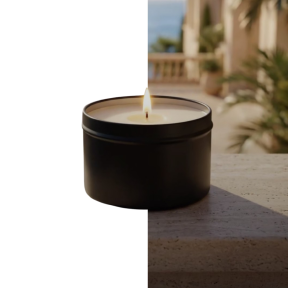
Edit an image by describing the change.
No selection tools, no layers, no masking. Say what should be different in a sentence and get the version back — then say the next thing.

How it works
- 1
Bring the image
Anything in your library, or an upload. It does not have to be something Crevo made.
- 2
Say what to change
“Make the type thinner.” “Try it in dark green.” “Remove the tagline.” Ordinary sentences, not prompt syntax.
- 3
Go again
Each pass is a new result rather than an overwrite, so you can take three directions from the same starting point and compare them.
What it makes
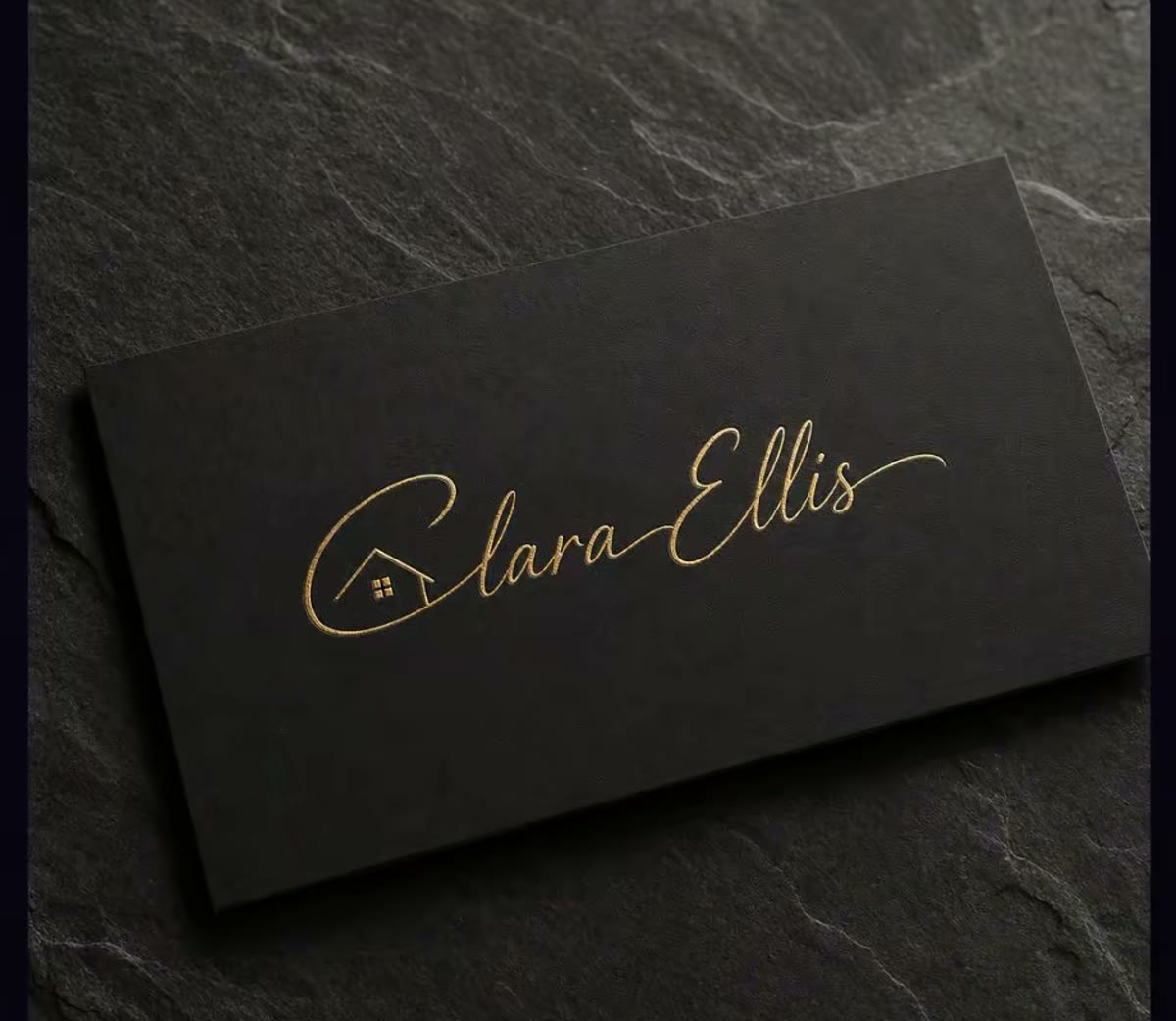

At a glance
- Input
- Any image — yours or one Crevo made
- Instruction
- Plain language
- History
- Every pass kept separately in your library
Questions about edit with ai
Will it change the parts I did not ask about?
It aims not to, and naming what should stay the same in the instruction helps. For a change that has to be exact — a specific hex value, a precise crop — a real editor is still the right tool.
Can I edit photos, not just logos?
Yes. It works on any image you can upload, though the tool is tuned for brand and product work rather than for portrait retouching.
Ready to try edit with ai?
Start free — the daily credit allowance is enough to find out whether it does what you need.
No card to start · One account across iPhone and the web